Developer Guide
- Acknowledgements
- Design
- Version component
- Documentation, logging, testing, configuration, dev-ops
- Appendix: Requirements
- Appendix: Instructions for manual testing
Acknowledgements
- This project is based on the AddressBook-Level3 project created by the SE-EDU initiative. Source code can be found at https://github.com/nus-cs2103-AY2526S1/tp
- AI Generation: Team member Kho Wei Fong used Google Gemini to generate the icon replacing AB3’s default icon.
-
AI Assistance: Team member Kulkarni Venugopal Vasant utilized Claude Code as a development aid during this project. The tool was used in the following specific ways:
-
Software Design Consultation: Claude Code was used as a discussion partner to explore different approaches and design patterns for features such as the
InteractionLogsystem. This involved asking questions about data structure choices, class relationships, and implementation trade-offs (e.g. making InteractionLog immutable). The AI helped think through design decisions, but all final design choices and implementations were made and coded by the team member. - JavaDoc Documentation: Claude Code assisted in drafting JavaDoc comments based on already-written code to ensure proper documentation formatting and completeness. These generated comments were reviewed and often modified to match our specific implementation details and be consistent with the codebase.
-
Unit Test Generation: Claude Code was used to generate some unit tests, primarily for the
PinCommandandUnpinCommand. All generated tests were thoroughly reviewed, modified where necessary, and verified to ensure correctness and meaningful test coverage for our specific implementation.
-
Software Design Consultation: Claude Code was used as a discussion partner to explore different approaches and design patterns for features such as the
-
AI Assistance: Team member Tan Peng Kiang used Claude to suggest dashboard metrics and identify outdated/overly-technical sections in
docs/UserGuide.md. Outputs were reviewed and edited before being applied. - AI Assistance: Team member Ng Mun Hin used ChatGPT to create and refine phone number and name regular expressions. Outputs were reviewed and edited before being applied.
- AI Assistance: Team member Ashmita Haldar used GitHub Copilot as a development aid, to draft and refine JavaDoc documentation, and to generate unit tests. Outputs were reviewed and edited before being applied.
Design
 Tip: The
 .puml files used to create diagrams are in this document docs/diagrams folder. Refer to the PlantUML Tutorial at se-edu/guides to learn how to create and edit diagrams.
Architecture
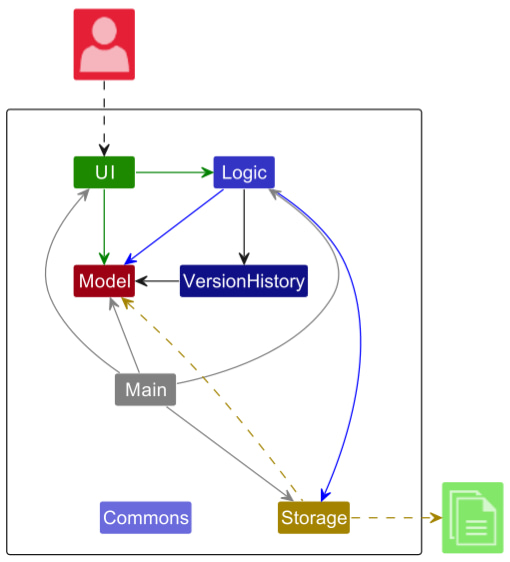
The Architecture Diagram given above explains the high-level design of the App.
Given below is a quick overview of main components and how they interact with each other.
Main components of the architecture
Main (consisting of classes Main and MainApp) is in charge of the app launch and shut down.
- At app launch, it initializes the other components in the correct sequence, and connects them up with each other.
- At shut down, it shuts down the other components and invokes cleanup methods where necessary.
The bulk of the app’s work is done by the following five components:
-
UI: The UI of the App. -
Logic: The command executor. -
Model: Holds the data of the App in memory. -
Storage: Reads data from, and writes data to, the hard disk. -
VersionHistory: Stores different states of the contacts between commands.
Commons represents a collection of classes used by multiple other components.
How the architecture components interact with each other
The Sequence Diagram below shows how the components interact with each other for the scenario where the user issues the command delete 1.
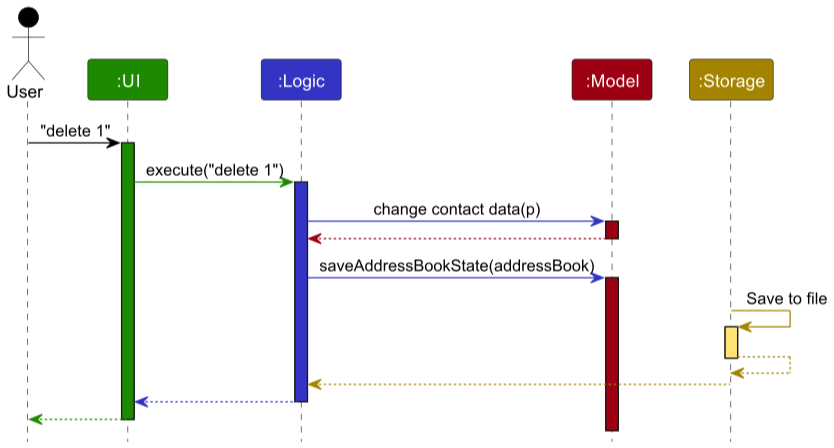
Each of the four main components (also shown in the diagram above),
- defines its API in an
interfacewith the same name as the Component. - implements its functionality using a concrete
ModelManagerclass (which follows the corresponding APIinterfacementioned in the previous point.
For example, the Logic component defines its API in the Logic.java interface and implements its functionality using the LogicManager.java class which follows the Logic interface. Other components interact with a given component through its interface rather than the concrete class (reason: to prevent outside component’s being coupled to the implementation of a component), as illustrated in the (partial) class diagram below.
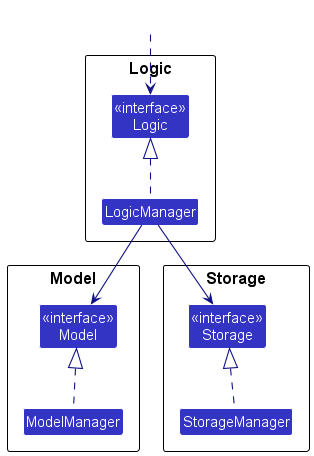
The sections below give more details of each component.
UI component
The API of this component is specified in Ui.java
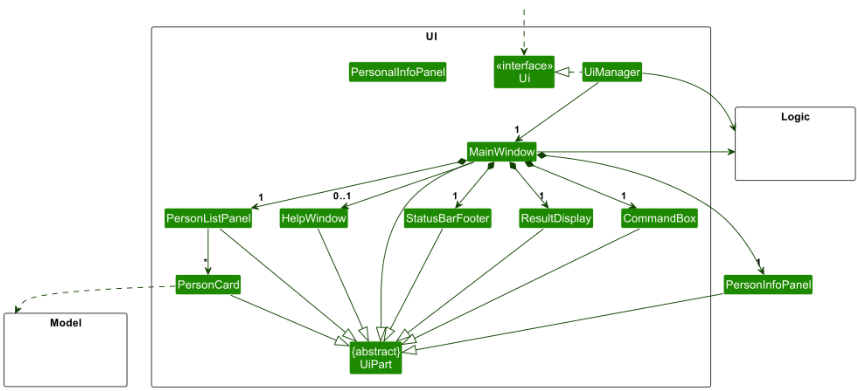
The UI consists of a MainWindow that is made up of parts e.g.CommandBox, ResultDisplay, PersonListPanel, StatusBarFooter etc. All these, including the MainWindow, inherit from the abstract UiPart class which captures the commonalities between classes that represent parts of the visible GUI.
The UI component uses the JavaFx UI framework. The layout of these UI parts are defined in matching .fxml files that are in the src/main/resources/view folder. For example, the layout of the MainWindow is specified in MainWindow.fxml
The UI component,
- executes user commands using the
Logiccomponent. - listens for changes to
Modeldata so that the UI can be updated with the modified data. - keeps a reference to the
Logiccomponent, because theUIrelies on theLogicto execute commands. - depends on some classes in the
Modelcomponent, as it displaysPersonobject residing in theModel.
Logic component
API : Logic.java
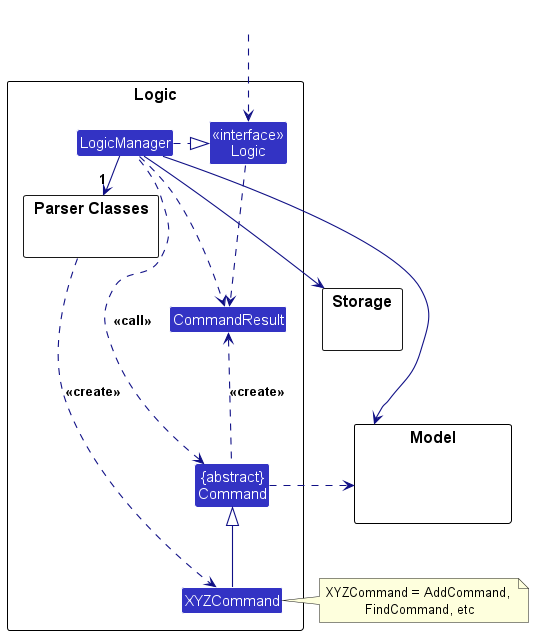
Here’s a (partial) class diagram of the Logic component:
The sequence diagram below illustrates the interactions within the Logic component, taking execute("delete 1") API call as an example.
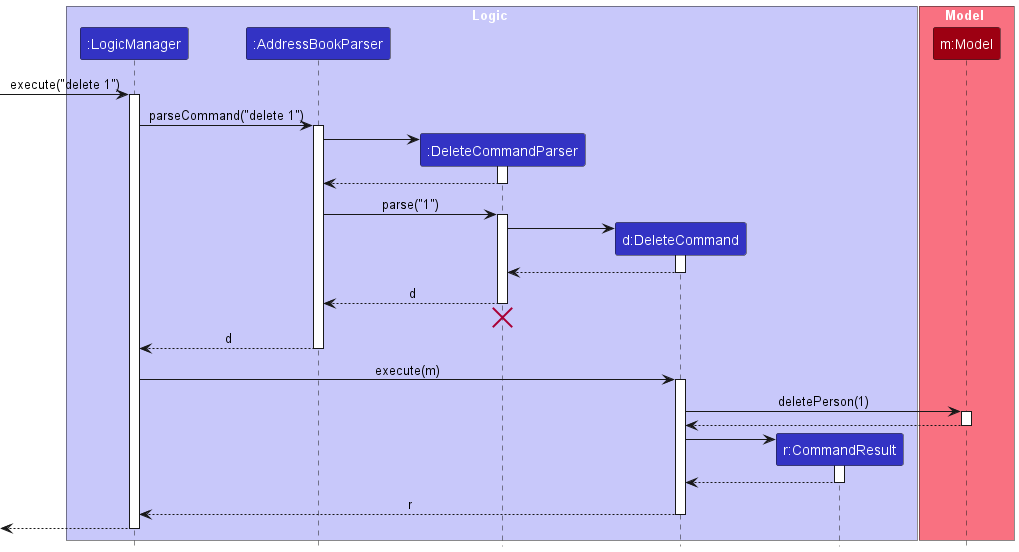
 Note: The lifeline for
 DeleteCommandParser should end at the destroy marker (X) but due to a limitation of PlantUML, the lifeline continues till the end of diagram.
How the Logic component works:
- When
Logicis called upon to execute a command, it is passed to anAddressBookParserobject which in turn creates a parser that matches the command (e.g.,DeleteCommandParser) and uses it to parse the command. - This results in a
Commandobject (more precisely, an object of one of its subclasses e.g.,DeleteCommand) which is executed by theLogicManager. - The command can communicate with the
Modelwhen it is executed (e.g. to delete a person).
Note that although this is shown as a single step in the diagram above (for simplicity), in the code it can take several interactions (between the command object and theModel) to achieve. - The result of the command execution is encapsulated as a
CommandResultobject which is returned back fromLogic.
Here are the other classes in Logic (omitted from the class diagram above) that are used for parsing a user command:
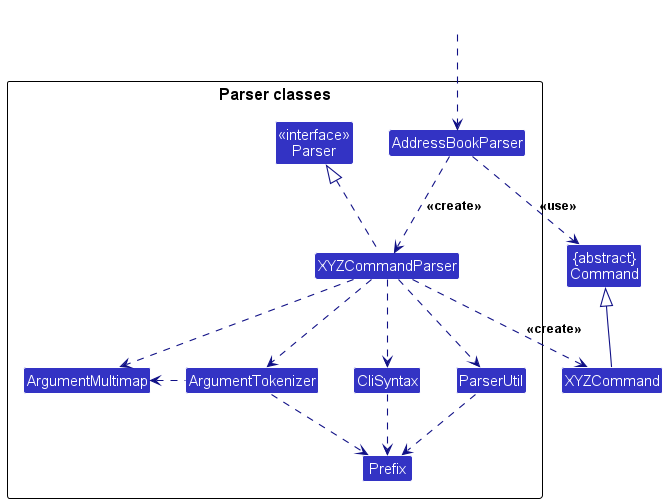
How the parsing works:
- When called upon to parse a user command, the
AddressBookParserclass creates anXYZCommandParser(XYZis a placeholder for the specific command name e.g.,AddCommandParser) which uses the other classes shown above to parse the user command and create aXYZCommandobject (e.g.,AddCommand) which theAddressBookParserreturns back as aCommandobject. - All
XYZCommandParserclasses (e.g.,AddCommandParser,DeleteCommandParser, …) inherit from theParserinterface so that they can be treated similarly where possible e.g, during testing.
Model component
API : Model.java
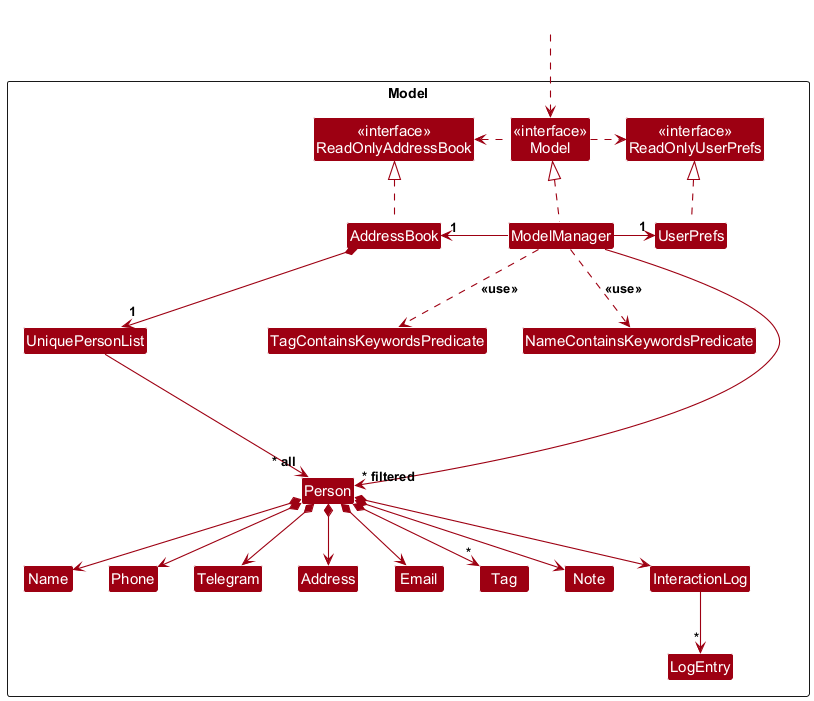
The Model component,
- stores the address book data i.e., all
Personobjects (which are contained in aUniquePersonListobject). - stores the currently ‘selected’
Personobjects (e.g., results of a search query) as a separate filtered list which is exposed to outsiders as an unmodifiableObservableList<Person>that can be ‘observed’ e.g. the UI can be bound to this list so that the UI automatically updates when the data in the list change. - stores a
UserPrefobject that represents the user’s preferences. This is exposed to the outside as aReadOnlyUserPrefobjects. - does not depend on any of the other three components (as the
Modelrepresents data entities of the domain, they should make sense on their own without depending on other components)
Storage component
API : Storage.java
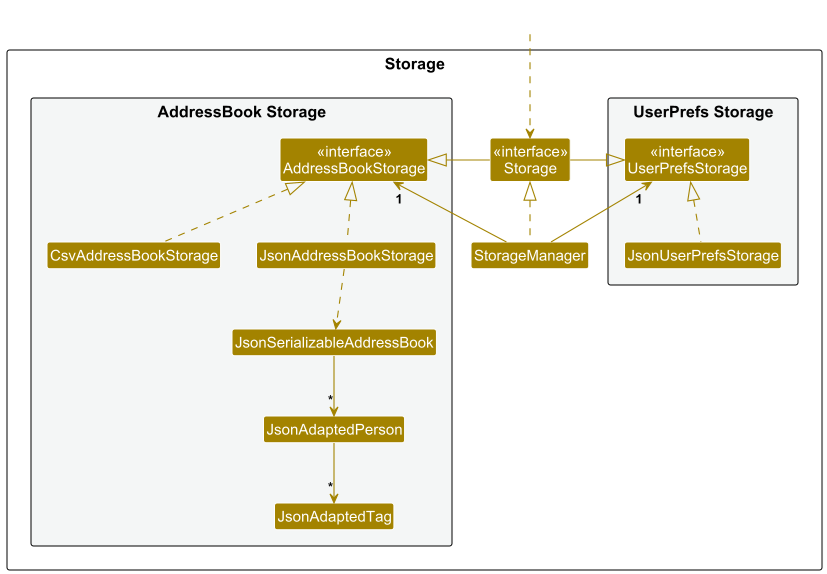
The Storage component,
- can save both address book data and user preference data in JSON format, and read them back into corresponding objects.
- inherits from both
AddressBookStorageandUserPrefStorage, which means it can be treated as either one (if only the functionality of only one is needed). - depends on some classes in the
Modelcomponent (because theStoragecomponent’s job is to save/retrieve objects that belong to theModel)
Common classes
Classes used by multiple components are in the seedu.address.commons package.
Version component
This section describes some noteworthy details on how certain features are implemented.
Undo/redo feature
The mechanism is facilitated by AddressBookVersionHistory. It manages the undo/redo history using two stacks: undoStack for past states and redoStack for future states. Additionally, it implements the following operations:
-
AddressBookVersionHistory#saveState(ReadOnlyAddressBook)— Saves the current address book state before making changes. -
AddressBookVersionHistory#undo(ReadOnlyAddressBook)— Restores the previous address book state from the undo stack. -
AddressBookVersionHistory#redo(ReadOnlyAddressBook)— Restores a previously undone address book state from the redo stack. -
AddressBookVersionHistory#canUndo()— Checks if there are states available to undo. -
AddressBookVersionHistory#canRedo()— Checks if there are states available to redo.
These operations are exposed in the Model interface as Model#saveAddressBookState(), Model#undoAddressBook(), Model#redoAddressBook(), Model#canUndoAddressBook(), and Model#canRedoAddressBook() respectively.
Given below is an example usage scenario and how the undo/redo mechanism behaves at each step.
Step 1. The AddressBookVersionHistory is initialized with the current address book state pushed onto the undoStack, while the redoStack is empty.
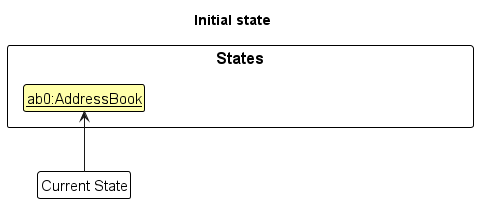
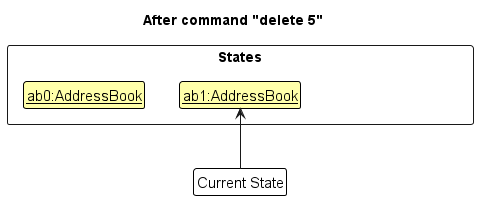
Step 2. The delete command calls Model#saveAddressBookState(), which pushes the modified address book state onto the undoStack and clears the redoStack.
Step 3. The user executes add n/David … to add a new person. The add command also calls Model#commitAddressBook(), causing another modified address book state to be saved into the AddressBookVersionHistory.
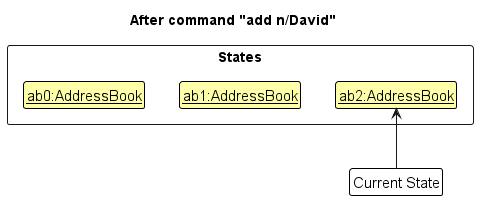
Note: If a command fails its execution, it will not call Model#commitAddressBook(), so the address book state will not be saved into the AddressBookVersionHistory.
Step 4. The undo command pops the latest state from the undoStack and pushes it onto the redoStack, restoring the previous address book state from the new top of the undoStack.
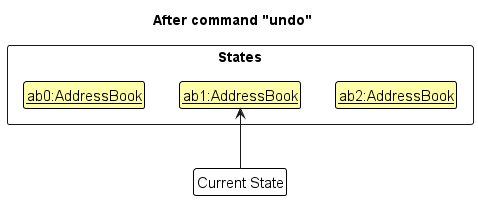
Note: If the undoStack is empty then there are no previous AddressBook states to restore. The undo command uses Model#canUndoAddressBook() to check if this is the case. If so, it will return an error to the user rather
than attempting to perform the undo.
The following sequence diagram shows how an undo operation goes through the Logic component:
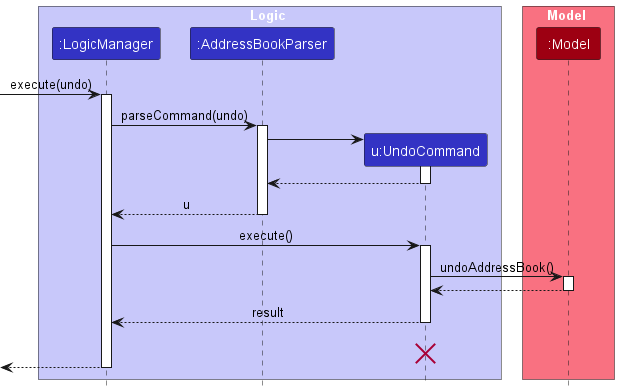
Note: The lifeline for UndoCommand should end at the destroy marker (X) but due to a limitation of PlantUML, the lifeline reaches the end of diagram.
Similarly, how an undo operation goes through the Model component is shown below:
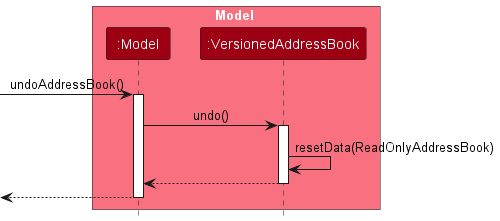
The redo command does the opposite — it calls Model#redoAddressBook(), which pops the latest state from the redoStack and pushes it back onto the undoStack, restoring that state as the current address book.
Note: If the redoStack is empty then there are no undone AddressBook states to restore. The redo command uses Model#canRedoAddressBook() to check if this is the case. If so, it will return an error to the user rather than attempting to perform the redo.
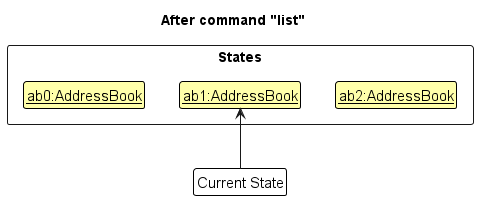
Step 5. The user then decides to execute the command list. Commands that do not modify the address book, such as list, will usually not call Model#commitAddressBook(), Model#undoAddressBook() or Model#redoAddressBook(). Thus, the AddressBookVersionHistory remains unchanged.
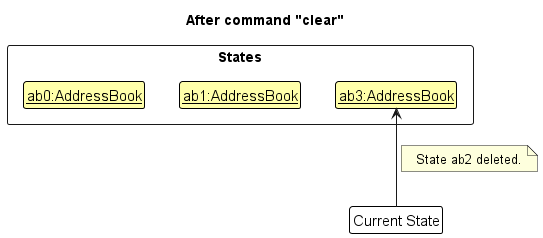
Step 6. The user executes clear, which calls Model#commitAddressBook(). Since there are states stored in the redoStack (representing redo history), executing a new command clears the redoStack — consistent with standard undo/redo behavior.
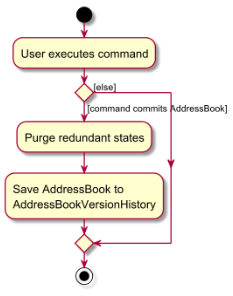
The following activity diagram summarizes what happens when a user executes a new command:
Design considerations:
Aspect: How undo & redo executes:
-
Alternative 1 (current choice): Saves the entire address book.
- Pros: Easy to implement.
- Cons: May have performance issues in terms of memory usage.
-
Alternative 2: Individual command knows how to undo/redo by
itself.
- Pros: Will use less memory (e.g. for
delete, just save the person being deleted). - Cons: We must ensure that the implementation of each individual command are correct. _
- Pros: Will use less memory (e.g. for
Find Command with Fuzzy Matching
The find command uses three matching strategies to locate contacts:
- Full-word match (case-insensitive): Exact match of keyword to any word in the name
- Fuzzy match: Uses Levenshtein distance algorithm with threshold of 2 character differences
- Substring match: Only applied for keywords equal to or longer than 3 characters
Implementation:
-
NameContainsKeywordsPredicate#matchesKeyword()implements the matching logic - Keywords < 3 characters: Only full-word and substring matching applied (prevents noisy results from short queries like “an”)
- Keywords >= 3 characters: All three strategies applied
- Each word in a person’s name is tested independently
Design considerations:
-
Alternative 1 (current): Fixed thresholds (4-char cutoff, distance 2)
- Pros: Predictable behavior, good balance of precision/recall
- Cons: May not suit all use cases (e.g., names in different languages)
-
Alternative 2: Configurable thresholds
- Pros: Users can tune behavior for their needs
- Cons: Adds complexity to UI/config management
Sequence Diagrams
Find Command Execution Flow:
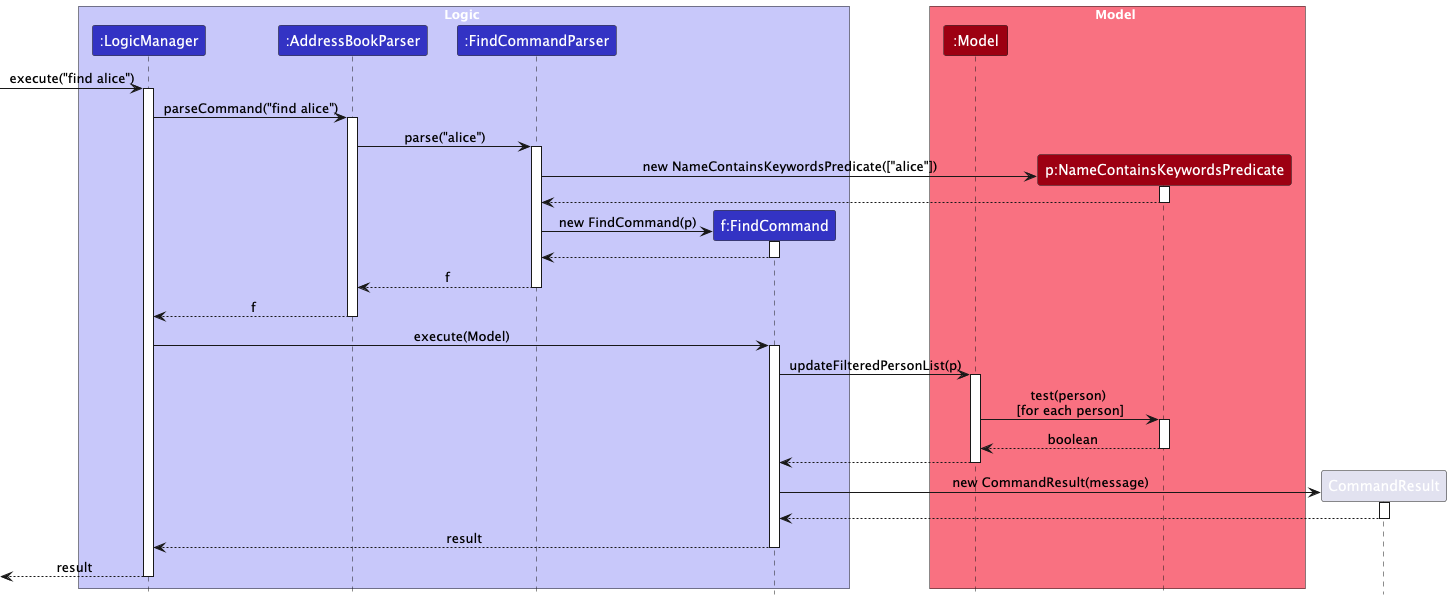
The sequence diagram above shows how a find command is parsed and executed through the Logic and Model components.
Predicate Matching Logic:
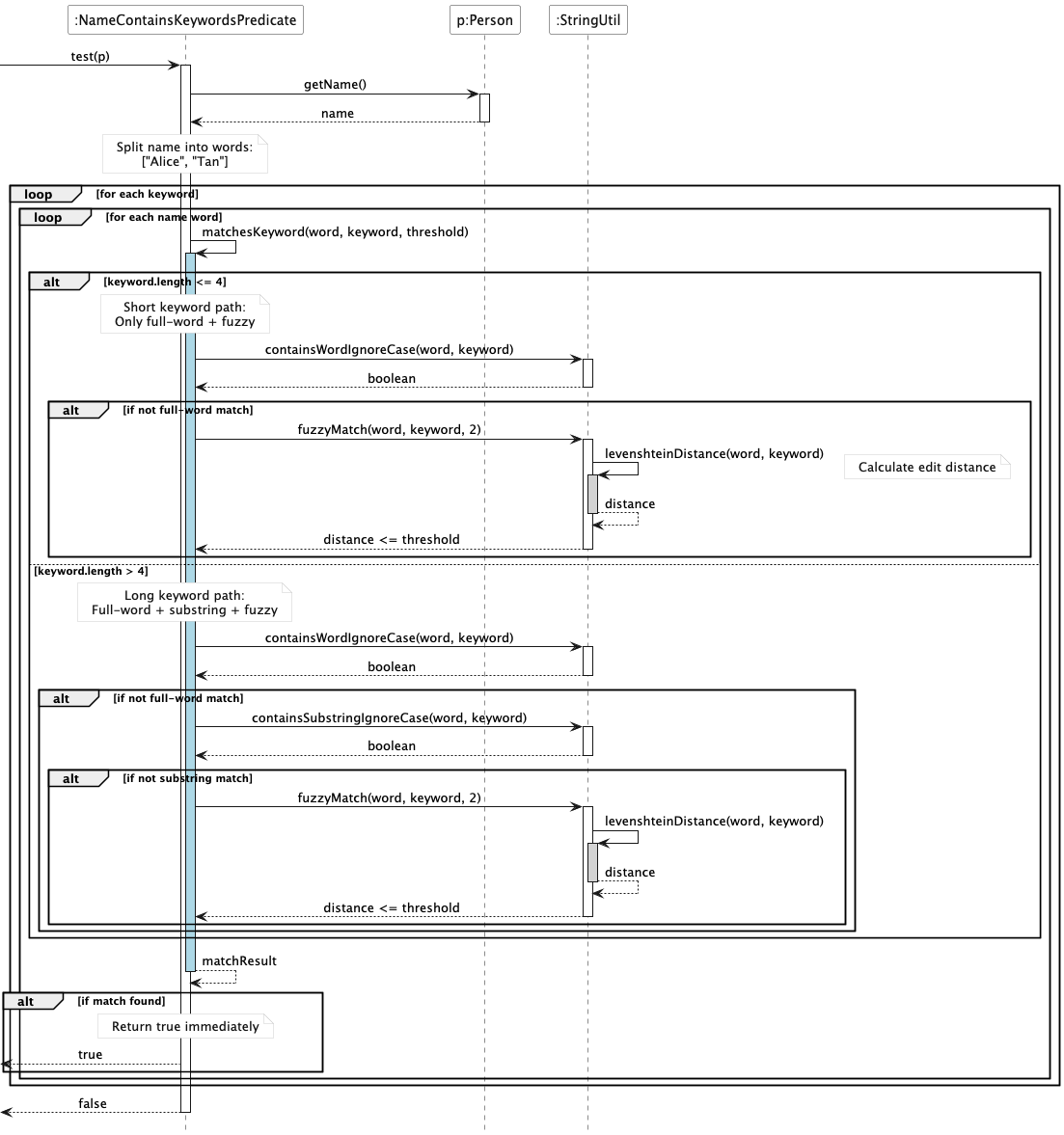
The sequence diagram above details how NameContainsKeywordsPredicate tests each person against the search keywords, showing the different matching paths for short (≤4 characters) and long (>4 characters) keywords.
Class Diagram
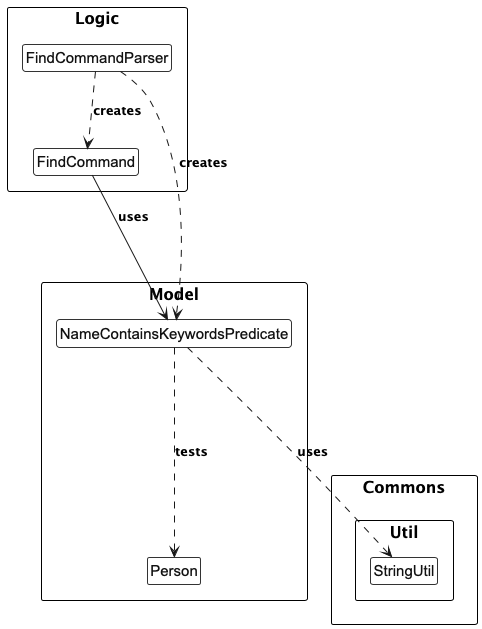
The class diagram shows the relationships between the FindCommand, FindCommandParser, NameContainsKeywordsPredicate, and utility classes.
Activity Diagram
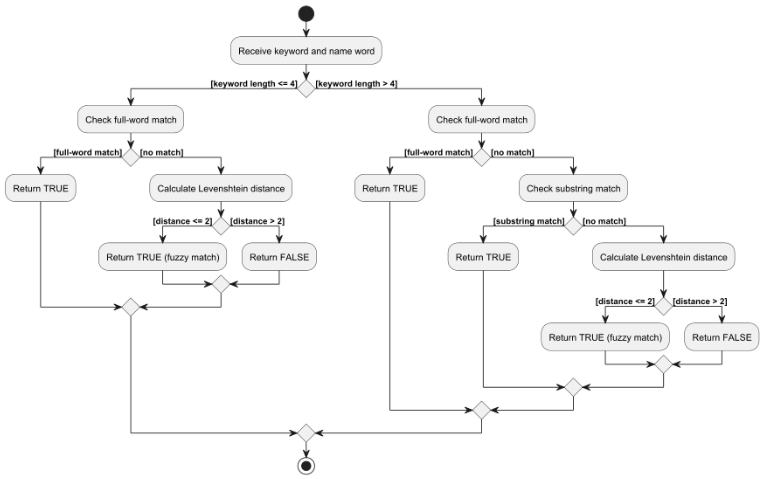
The activity diagram illustrates the decision flow for matching a single keyword against a name word, showing how the keyword length determines which matching strategies are applied.
Interaction Log feature
The interaction log feature allows users to record interactions with contacts. Each log entry contains a message, an optional type, and a timestamp. The log command is used to add new log entries.
The following sequence diagram illustrates the execution of the log command:
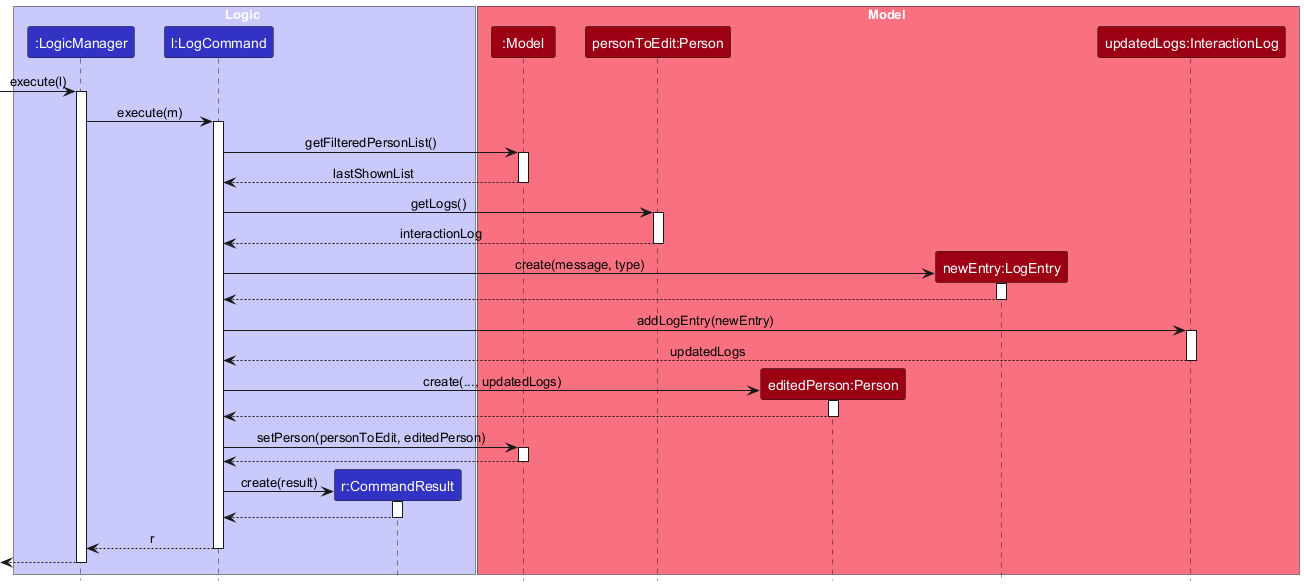
The implementation of this feature is divided into three main classes: LogCommand, InteractionLog, and LogEntry.
-
LogEntry: This is an immutable class that represents a single log entry. It contains the message, type, and timestamp of the interaction. -
InteractionLog: This is also an immutable class that holds a list ofLogEntryobjects. It provides a methodaddLogEntrywhich returns a newInteractionLoginstance with the new log entry added. This immutability ensures that the log history of a person cannot be changed accidentally. -
LogCommand: This class is responsible for executing thelogcommand. When executed, it performs the following steps:- It parses the user input to get the index of the person, the log message, and the interaction type.
- It retrieves the
Personobject from the model using the provided index. - It creates a new
LogEntryobject with the provided message and type. - It calls the
addLogEntrymethod on the person’sInteractionLogto get a newInteractionLogwith the new entry. - It creates a new
Personobject with the updatedInteractionLog. - Finally, it replaces the old
Personobject in the model with the new one.
This entire process ensures that the data remains consistent and that the application state is managed in a predictable way. The use of immutable objects for LogEntry and InteractionLog makes the code more robust and easier to reason about.
Data importing and exporting
The address book is stored in a .json file. To facilitate usage across different platforms, import and export features have been incorporated.
The following features have been implemented:
-
Importing address books -
Exporting address books with tag filters - Compatibility with
.csvfiles
Importing address books
The save data is stored by JsonAddressBookStorage in a .json file. Thus, it would be simple for the user to be able to access a different set of addresses by importing a different .json file, which stores a different set of addresses.
An overview of the import process is shown as per the activity diagram below:
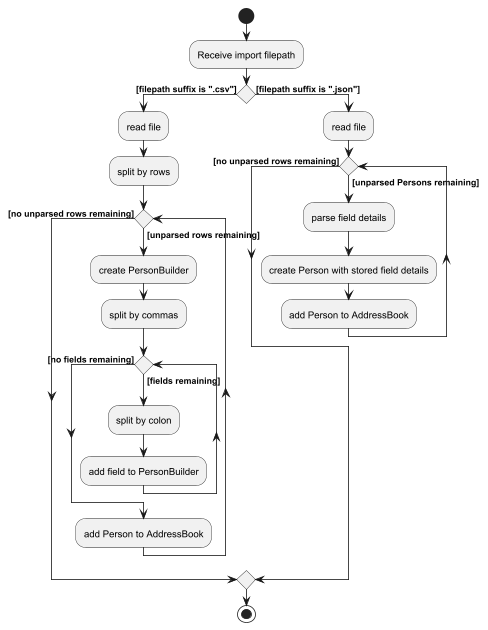
How the import function is coordinated across the various components is shown in the sequence diagram below:
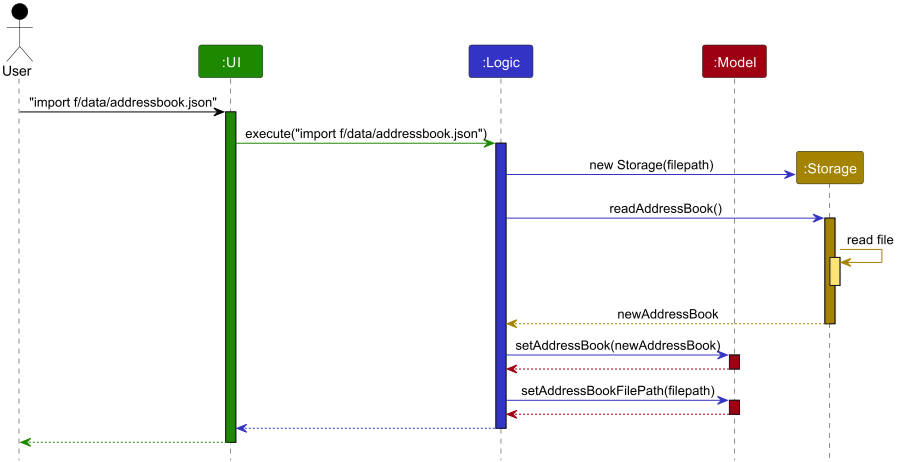
- The command for
importis given, along with the target file to be imported. - The
UIcalls thelogicmanager to execute the command. - The
logicmanager parses the filepath. - The
logicmanager creates a newStoragefor that filepath. - The
logicmanager requests the stored data fromStorageviareadAddressBook. - The
storagereturns the readAddressBook. - The
logicmanager sets themodel’sAddressBookas the readAddressBook. - The
logicmanager sets themodel’sAddressBookfilepath to the input filepath.
Design considerations
- The model is adjusted only after
Storagehas processed the file, confirming that it is a valid storage file.
Exporting address books with filters
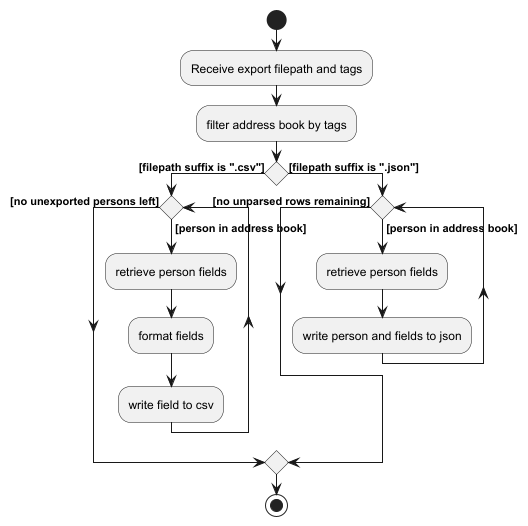
To import files, the user needs to be able to create files that are compatible with the import process. The export feature serves to facilitate that conversion process, converting the user’s cached AddressBook into a compatible file.
An overview of the export process is shown as per the activity diagram below:
How the export function is coordinated across the various components is shown in the sequence diagram below:
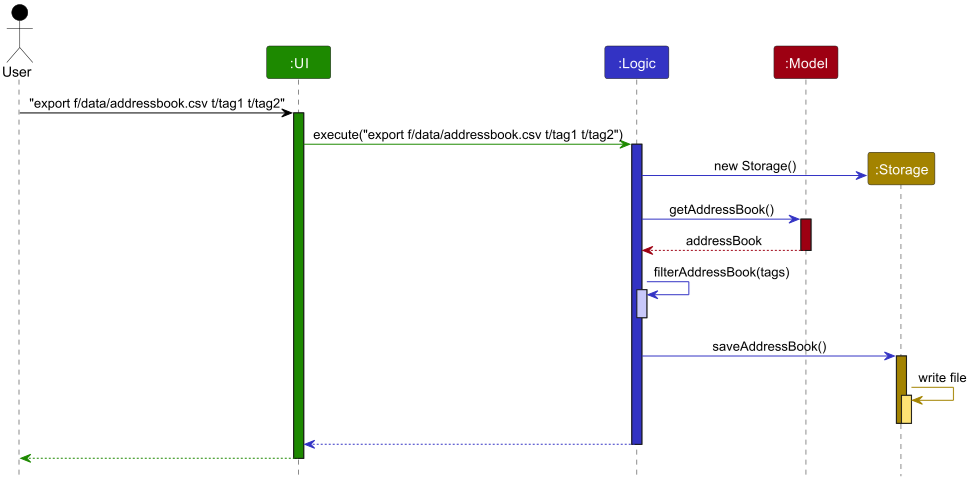
- The command for
exportis given, along with output destination and any tags. - The
UIcalls theLogicmanager to execute the command. - The
Logicmanager parses the filepath. - The
Logicmanager creates a newStoragefor that filepath. - The
Logicmanager requests the storedAddressBookfrom theModel. - The
Modelreturns theAddressBook. - The
Logicmanager retrieves a list ofPeoplefrom theAddressBook. - The
Logicmanager filters the list ofPeoplewith theTags - The
Logicmanager sends the filtered list to theStorageobject. - The
Storageobject writes the filtered list to the destination file.
Design considerations
-
Storageis initialized before the retrieval of theAddressBookto ensure file retrievalexceptionsare thrown before operations are performed.
Compatibility with .csv files
Compatibility with .csv files has been added, providing users with an alternative file format for importing and exporting data.
.csv files can be both exported and imported.
Sort Command and Comparators
- The
sortcommand allows users to reorder their contact list by a specified field and order. - Possible fields include
name,email,phone,telegram, oraddress. - Possible orders include
ascordesc. - Note that contacts are sorted by pinned status before the second comparator is applied.
When executed, the SortCommand constructs a Comparator<Person> based on the selected field and order to be composed on the pinned status comparator by the Model.
The default sorting comparator applied on program startup sorts by pinned status first before name in ascending order.
Documentation, logging, testing, configuration, dev-ops
Appendix: Requirements
Product scope
Target user profile:

- Student leaders planning events
- Has a need to manage a significant number of vendor and stakeholder contacts
- Prefer desktop apps over other types
- Can type fast
- Prefers typing to mouse interactions
- Is reasonably comfortable using CLI apps
- Spends significant time sourcing or recalling important contacts for space vendors and NUS staff
Value proposition: LinkedUp contact tracking application helps student leaders build and maintain professional networks while keeping vendor and stakeholder contacts organized. Manage contacts faster than a typical mouse/GUI driven app, with features designed specifically for event planning needs.
User stories
Priorities: High (must have) - * * *, Medium (nice to have) - * *, Low (unlikely to have) - *
| Priority | As a … | I want to … | So that I can… |
|---|---|---|---|
* * * |
user | add a new contact | use it for future reference |
* * * |
user | delete a contact | remove unneeded contacts or contacts with wrong details |
* * * |
user | view all my saved contacts | refer to my saved contact details in a convenient manner |
* * * |
user | find contacts by keyword | locate contacts without going through the entire list |
* * * |
user | tag contacts | spend less time and effort looking for contact details |
* * |
user | update phone numbers in my contacts | stay in touch even when they change their number |
* * |
user | update emails in my contacts | stay in touch even when they change their email |
* * |
user | sort contacts by fields | make easy comparisons and faster decisions |
* * |
user | filter contacts tagged with a specific keyword | quickly find relevant suppliers for specific needs |
* * |
user | search contacts dynamically | find them even if I do not remember their full details |
* * |
user | view the app preloaded with sample contacts | understand how the system works |
* * |
user | export my contacts in a viewable format | share vendor information with other organizers |
* * |
user | import my contacts from a common format such as JSON | focus on organizing events rather than spend time collating contacts |
* * |
user | share my database file with other organizers | they can use the same vendor information |
* |
user | update telegram handles in my contacts | stay in touch even when they change their handle |
* |
user | record notes for each contact | refer to details about past experiences with them |
* |
user | view an intuitive visualization of vendors with key information | get information at a glance |
* |
user | group multiple vendors under a specific event | review which vendors were used for the event |
* |
user | store my contacts in organized software | easily find the same required contacts used by seniors |
* |
user | undo and redo commands | recover from mistakes |
* |
user | pin the contacts of vendors I need | have these contacts always available at the top |
Use cases
(For all use cases below, the System is LinkedUp and the Actor is the user, unless specified otherwise)
Use case: U1 - Starting the app
Preconditions: User has downloaded the jar file and has Java 17 configured.
MSS
- User runs the jar file.
- System converts storage json file into contacts.
-
System displays all stored contacts.
Use case ends.
Extensions
- 2a. No stored contacts list found.
- 2a1. System creates new save file.
- Use case resumes from step 3.
Use case: U2 - Adding a contact
Preconditions: User has started the app.
MSS
- User provides details in the command line for new contact.
- System internalizes details to create a new contact object.
- System adds the contact and displays the updated list of contacts.
-
System scrolls to the newly added contact.
Use case ends.
Extensions
- 1a. System detects an invalid input.
- 1a1. System informs the user of the error.
- 1a2. User fixes and resubmits their request.
- Steps 1a1-1a2 are repeated until the data entered is correct.
- Use case resumes from step 2.
Use case: U3 - Listing contacts
Preconditions: User has started the app.
MSS
- User requests a list of contacts.
-
System displays all contacts.
Use case ends.
Extensions
- 2a. System does not find any contacts available.
- 2a1. System displays a message communicating the empty contact list.
- Use case ends.
Use case: U4 - Deleting a contact
Preconditions: The contact to be deleted is already in the contact list.
MSS
- User lists contacts (U3).
- User requests to delete a contact specified by index.
- System deletes the contact from its storage.
-
System displays the new contact list.
Use case ends.
Extensions
- 2a. System detects an invalid input.
- 2a1. System informs the user of the error.
- 2a2. User fixes and resubmits their request.
- Steps 2a1-2a2 are repeated until the data entered is correct.
- Use case resumes from step 3.
Use case: U5 - Tagging a contact
Preconditions: User has started the app and the contact to be tagged is already in the contact list.
MSS
- User lists contacts (U3).
- User requests to tag a specific contact from the list by index.
- System adds tag to the list of tags in the chosen contact.
-
System displays message conveying the successful addition of tag.
Use case ends.
Extensions
- 2a. System detects an invalid input.
- 2a1. System informs the user of the error.
- 2a2. User fixes and resubmits their request.
- Steps 2a1-2a2 are repeated until the data entered is correct.
- Use case resumes from step 3.
- 3a. Tag already exists on the contact (case-insensitive).
- 3a1. System ignores the duplicate tag and informs user.
- Use case ends.
- 3b. Contact has reached maximum number of tags (20).
- 3b1. System rejects the tag and informs user.
- Use case ends.
Use case: U6 - Deleting a tag
Preconditions: The tag exists on the target contact.
MSS
- User lists contacts (U3).
- User requests to delete a tag from a contact by index.
-
System deletes the tag and displays the new list of contacts.
Use case ends.
Extensions
- 2a. System detects an invalid input.
- 2a1. System informs the user of the error.
- 2a2. User fixes and resubmits their request.
- Steps 2a1-2a2 are repeated until the data entered is correct.
- Use case resumes from step 3.
- 2b. Specified tag does not exist on the contact.
- 2b1. System informs user that tag is not found.
- Use case ends.
Use case: U7 - Finding contacts
Preconditions: User has started the app.
MSS
- User searches for a contact based on a keyword.
-
System displays the list of contacts filtered by keywords.
Use case ends.
Extensions
- 1a. User specifies invalid search parameters.
- 1a1. System informs user of the error.
- Use case ends.
- 2a. No contacts match the search criteria.
- 2a1. System displays empty result set.
- Use case ends.
Use case: U8 - Sorting contacts
Preconditions: User has a list of contacts.
MSS
- User requests to sort the contact based on a parameter (name, email, phone number or address).
-
System displays the sorted contact list.
Use case ends.
Extensions
- 1a. User specifies invalid field.
- 1a1. System informs user of valid field options.
- Use case ends.
- 1b. User specifies invalid sort order.
- 1b1. System informs user of valid sort order options.
- Use case ends.
Use case: U9 - Exiting the app
Preconditions: User has started the app.
MSS
- User requests to exit the application.
- System saves updated contact data.
-
System exits the app.
Use case ends.
Extensions
- 2a. System cannot save data to storage.
- 2a1. System informs user of save failure.
- 2a2. User chooses to exit anyway or cancel.
- Use case ends or resumes from step 2.
Use case: U10 - Exporting contacts
Preconditions: User has started the app.
MSS
- User requests to export contacts.
- System converts contacts to JSON format.
- System saves JSON file to designated location.
-
System informs user of successful export.
Use case ends.
Extensions
- 3a. System cannot write to storage location.
- 3a1. System informs user of the error.
- Use case ends.
Use case: U11 - Importing contacts
Preconditions: User has started the app and has a valid JSON contacts file.
MSS
- User provides path to JSON file containing contacts.
- System validates and parses the JSON file.
- System adds valid, non-duplicate contacts to storage.
-
System displays updated contact list.
Use case ends.
Extensions
- 2a. File format is invalid or file cannot be read.
- 2a1. System informs user of the error.
- Use case ends.
- 3a. Some contacts have invalid data.
- 3a1. System skips invalid contacts.
- 3a2. System continues with valid contacts.
- Use case resumes from step 4.
- 3b. All contacts are duplicates.
- 3b1. System informs user no new contacts were imported.
- Use case ends.
Use case: U12 - Adding notes to a contact
Preconditions: The contact exists in the contact list.
MSS
- User lists contacts (U3).
- User requests to add notes to a specific contact by index.
- System adds the notes to the contact.
-
System displays confirmation message.
Use case ends.
Extensions
- 2a. System detects an invalid index.
- 2a1. System informs the user of the error.
- 2a2. User fixes and resubmits their request.
- Steps 2a1-2a2 are repeated until valid index is entered.
- Use case resumes from step 3.
Use case: U13 - Pinning a contact
Preconditions: The contact to be pinned exists in the contact list.
MSS
- User lists contacts (U3).
- User requests to pin a specific contact by index.
- System marks the contact as pinned.
-
System displays the contact at the top of the list.
Use case ends.
Extensions
- 2a. System detects an invalid index.
- 2a1. System informs the user of the error.
- Use case ends.
Use case: U14 - Unpinning a contact
Preconditions: The contact is currently pinned.
MSS
- User lists contacts (U3).
- User requests to unpin a specific contact by index.
- System removes the pinned status from the contact.
-
System displays the contact in its normal sorted position.
Use case ends.
Extensions
- 2a. System detects an invalid index.
- 2a1. System informs the user of the error.
- Use case ends.
Use case: U15 - Updating contact information
Preconditions: The contact to be updated exists in the contact list.
MSS
- User lists contacts (U3).
- User requests to update specific fields (phone, email, or telegram handle) of a contact by index.
- System validates the new information.
- System updates the contact with new information.
- System displays the updated contact list.
-
System scrolls to the newly updated contact.
Use case ends.
Extensions
- 2a. System detects an invalid index.
- 2a1. System informs the user of the error.
- 2a2. User fixes and resubmits their request.
- Steps 2a1-2a2 are repeated until valid index is entered.
- Use case resumes from step 3.
- 3a. New information format is invalid.
- 3a1. System informs user of the error.
- 3a2. User fixes and resubmits their request.
- Steps 3a1-3a2 are repeated until valid information is entered.
- Use case resumes from step 4.
- 3b. New phone number or email already exists in another contact.
- 3b1. System rejects the update.
- Use case ends.
Use case: U16 - Filtering contacts by tag
Preconditions: User has started the app and contacts with tags exist.
MSS
- User requests to filter contacts by a specific tag keyword.
-
System displays all contacts that have the matching tag.
Use case ends.
Extensions
- 2a. No contacts have the specified tag.
- 2a1. System displays empty result set.
- Use case ends.
Use case: U17 - Grouping contacts by event
Preconditions: User has started the app and contacts exist.
MSS
- User tags multiple contacts (U5) with the same tag meant to represent an event.
-
User filters contacts by the event’s tag (U16).
Use case ends.
Non-Functional Requirements
- Should work on any mainstream OS (Windows, Linux, MacOS) as long as it has Java
17or above installed. - Should be able to hold up to 1000 contacts without a noticeable sluggishness in performance for typical usage.
- A user with above average typing speed for regular English text (i.e. not code, not system admin commands) should be able to accomplish most of the tasks faster using commands than using the mouse.
- Should display all contacts within 2 seconds after initial load.
- Commands should execute within 2 seconds under normal load.
- Import/export operations should process files up to 5MB within 5 seconds.
- Should be able to retrieve 100 contacts without noticeable sluggishness.
- Should be able to store at least 100 contacts for every user.
Glossary
- Mainstream OS: Windows, Linux, Unix, MacOS
- Student Leader: A student in NUS directly involved in supporting or organizing an event
- Contact: A data structure representing a person’s contact information. It consists of a name, email address, phone number, address, and any tags associated with that contact.
- Tag: A string input by the user to characterize contacts for organizational and filtering purposes
- Vendor: An external supplier or service provider that student leaders work with for events (e.g., caterers, merchandise suppliers, venue staff)
- Index: The numerical position of a contact in the displayed contact list, used to reference specific contacts in commands
- JSON (JavaScript Object Notation): A lightweight data format used for storing and exchanging contact information
- Duplicate Contact: A contact with the same phone number or email address as an existing contact in the system
- Pinned Contact: A contact marked for priority display, appearing at the top of the contact list regardless of sort order
- NUS: National University of Singapore
- IG Head: Interest Group Head, a leadership position in student organizations
Appendix: Instructions for manual testing
Given below are instructions to test the app manually.
Note: These instructions only provide a starting point for testers to work on;
testers are expected to do more exploratory testing.
Launch and shutdown
-
Initial launch
-
Download the jar file and copy into an empty folder
-
Double-click the jar file Expected: Shows the GUI with a set of sample contacts. The window size may not be optimum.
-
-
Saving window preferences
-
Resize the window to an optimum size. Move the window to a different location. Close the window.
-
Re-launch the app by double-clicking the jar file.
Expected: The most recent window size and location is retained.
-
Deleting a person
-
Deleting a person while all persons are being shown
-
Prerequisites: List all persons using the
listcommand. Multiple persons in the list. -
Test case:
delete 1
Expected: First contact is deleted from the list. Details of the deleted contact shown in the status message. Timestamp in the status bar is updated. -
Test case:
delete 0
Expected: No person is deleted. Error details shown in the status message. Status bar remains the same. -
Test case:
delete -5
Expected: Only positive integer accepted. Error details of index of existing person being needed will show.- Other incorrect delete commands to try:
delete,delete x,...(where x is larger than the list size)
Expected: Similar to previous.
- Other incorrect delete commands to try:
-
Saving data
-
Dealing with missing/corrupted data files
- Our software will still open, but it will refuse to load in the corrupted data. When new valid data is added, it will only save the new data to resume its normal functionality.