User Guide
LinkedUp User Guide
LinkedUp is designed for university student leaders including club presidents, society executives, event organizers, student council members, and committee heads who manage extensive networks of contacts across campus and beyond. These users typically manage 50-500+ contacts including fellow students, faculty advisors, alumni mentors, corporate sponsors, venue coordinators, and partner organization representatives. LinkedUp empowers student leaders to organize their professional networks efficiently through fast, typing-based commands.
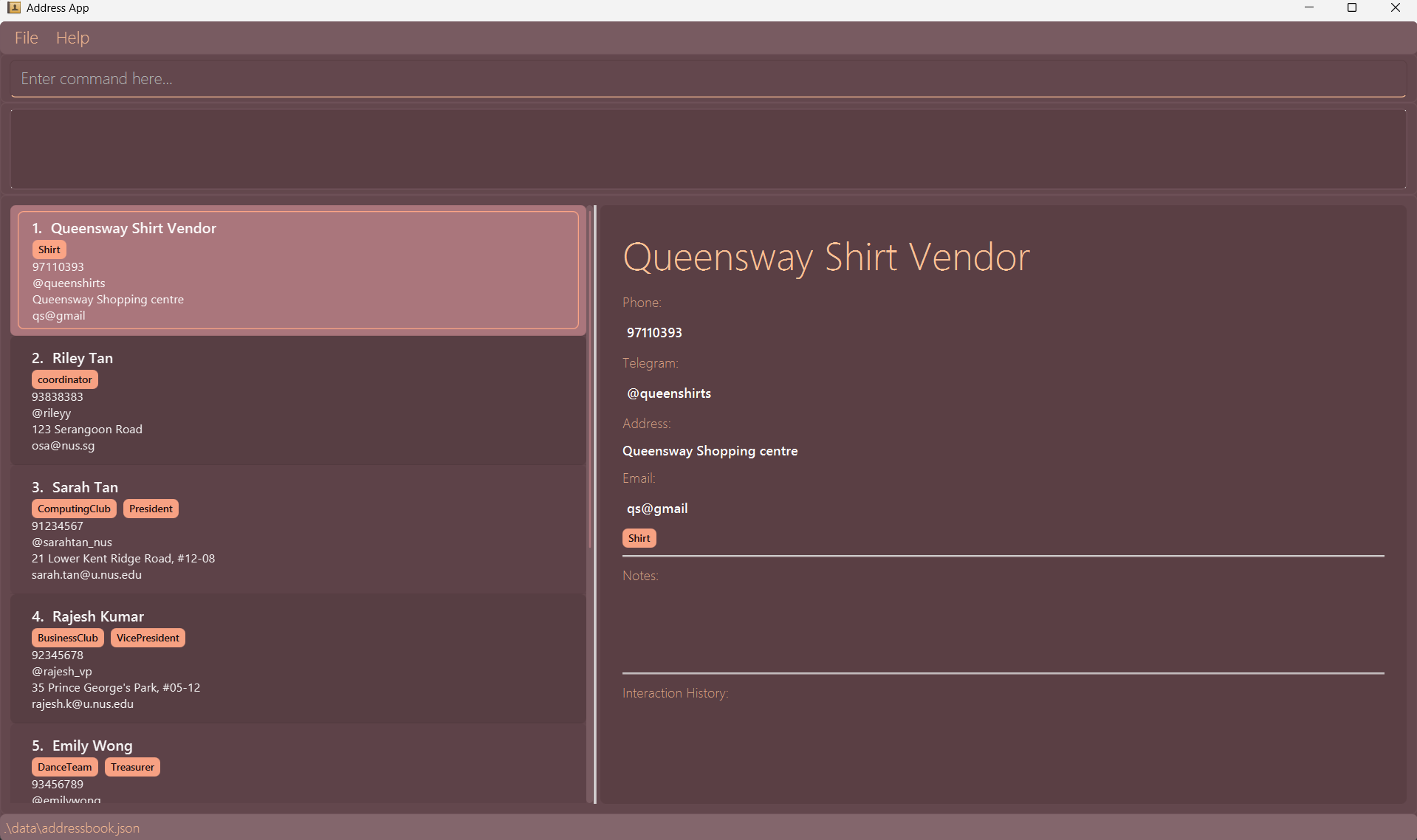
Instead of clicking through multiple menus, users simply type short commands to add contacts, search for specific people, categorize relationships, and retrieve information instantly.
The application displays all contact information, search results, and organized lists visually while letting users work at typing speed, combining the speed of text-based input with the clarity of visual presentation.
Whether you’re a club president tracking member information, an event organizer managing vendor contacts, or a society executive coordinating with sponsors, LinkedUp helps you maintain your network without slowing you down, making it ideal for users who need quick access to their contacts during busy coordination work.
Expectations:
- The application assumes users are comfortable with typing and prefer keyboard-based workflows over mouse-driven interfaces, valuing speed and efficiency in data entry and retrieval.
- Users are expected to be familiar with basic command syntax similar to using search bars or messaging apps, and need categorization and tagging capabilities to organize contacts by role, project, or affiliation without complex navigation.
Assumptions about user skills:
- Basic command-line familiarity: opening a terminal, navigating folders (e.g.,
cd), and running the application (e.g.,java -jar linkedup.jar). Able to copy/paste multi-line commands correctly. - Understanding of simple data concepts used by the app: 1-based indexes, tags, and contact fields (name, phone, email, telegram, address).
- Comfortable reading short on-screen prompts and help text, and able to edit autofilled commands (e.g.,
edit) before confirming. - Basic English literacy sufficient to interpret command keywords and UI labels.
- Basic awareness of data privacy and backup practices: avoid storing sensitive credentials in notes, and back up the
data/addressbook.jsonfile before manual edits.
Table of Contents
- Setup
- QuickStart
-
Features
- Viewing help
- Adding a contact
- Listing all contacts
- Statistics table
- Editing a contact
- Adding a note to a contact
- Logging an interaction with a contact
- Locating contacts by name
- Filtering contacts by tags
- Deleting a contact
- Pinning a contact
- Unpinning a contact
- Undoing a command
- Redoing a command
- Importing a save file
- Exporting your save file to .json or .csv
- Sorting contacts
- Clear contacts
- Exiting the app
- Saving the data
- Editing the data file
- FAQ
- Known Issues
- Command Summary
- Glossary
Setup
- System requirements:
- Ensure you have Java
17or above installed in your Computer by executingjava -version.
Mac users: Ensure you have the precise JDK version prescribed here.
- Ensure you have Java
- Downloading LinkedUp:
- Navigate to the release page on this Github repository.
- Download the latest
.jarfile from the latest release by clicking it (it should be the first entry).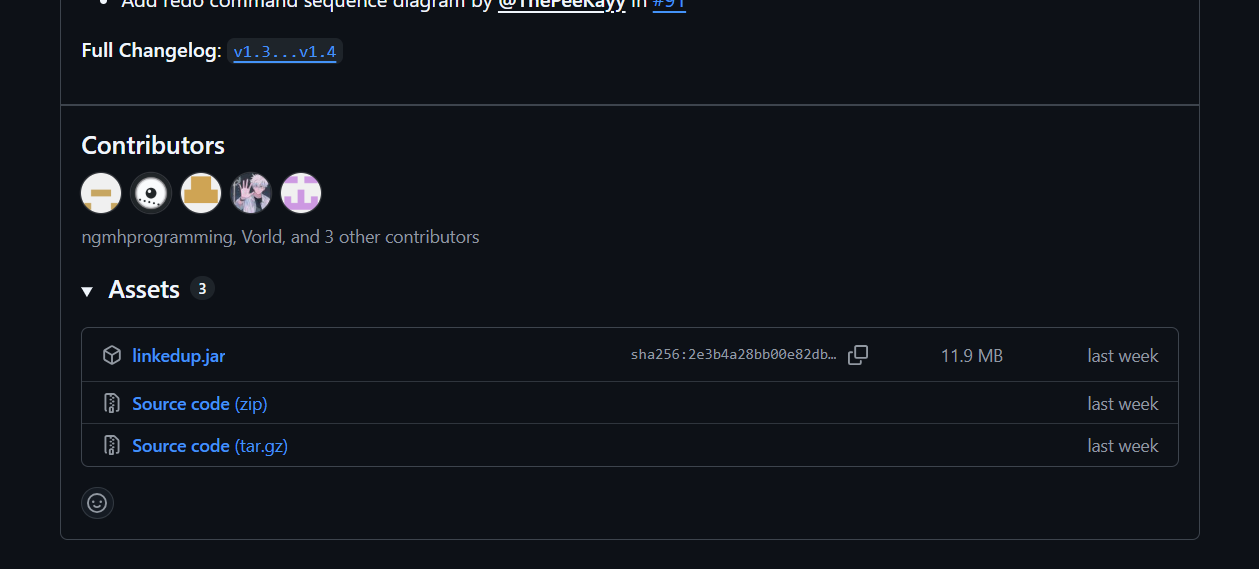
- Save the file to the folder you want to use as the home folder for your LinkedUp installation.
- Running LinkedUp
- Open a command terminal and enter
cdcommands to navigate to the folder you put the jar file in (e.g entercd linkedupfolder) - Use the
java -jar linkedup.jarcommand to run the application.
A GUI similar to the below should appear in a few seconds. Note how the app contains some sample data.
- Open a command terminal and enter
QuickStart
-
Type the command in the command box and press Enter to execute it. e.g. typing
helpand pressing Enter will open the help window.
Some example commands you can try:-
list: Lists all contacts. -
add n/Jackson Santoso p/9234567 tele/@jacksonS e/jackson@gmail.com a/Clementi Ave 2 Blk 555 t/Vice President t/ComputingClub: Adds a contact namedJackson Santosoto LinkedUp. -
delete 3: Deletes the 3rd contact shown in the current list. -
clear: Deletes all contacts. -
exit: Exits the app.
-
-
Refer to the Features below for details of each command.
Features
 Notes about the command format:
-
Words in
UPPER_CASEare the parameters to be supplied by the user.
e.g. inadd n/NAME,NAMEis a parameter which can be used asadd n/John Doe. -
Items in square brackets are optional.
e.gn/NAME [t/TAG]can be used asn/John Doe t/friendor asn/John Doe. -
Items with
… after them means you can repeat that parameter any number of times (including none)
e.g.[t/TAG]…can be used ast/friend,t/friend t/familyetc. -
Parameters can be in any order.
e.g. if the command specifiesn/NAME p/PHONE_NUMBER,p/PHONE_NUMBER n/NAMEis also acceptable. -
Extra parameters for commands that do not take in parameters (such as
help,list,exitandclear) will be ignored.
e.g. if the command specifieshelp 123, it will be interpreted ashelp. -
If you are using a PDF version of this document, be careful when copying and pasting commands that span multiple lines as space characters surrounding line-breaks may be omitted when copied over to the application.
Viewing help : help
Shows a message explaining how to access the help page.
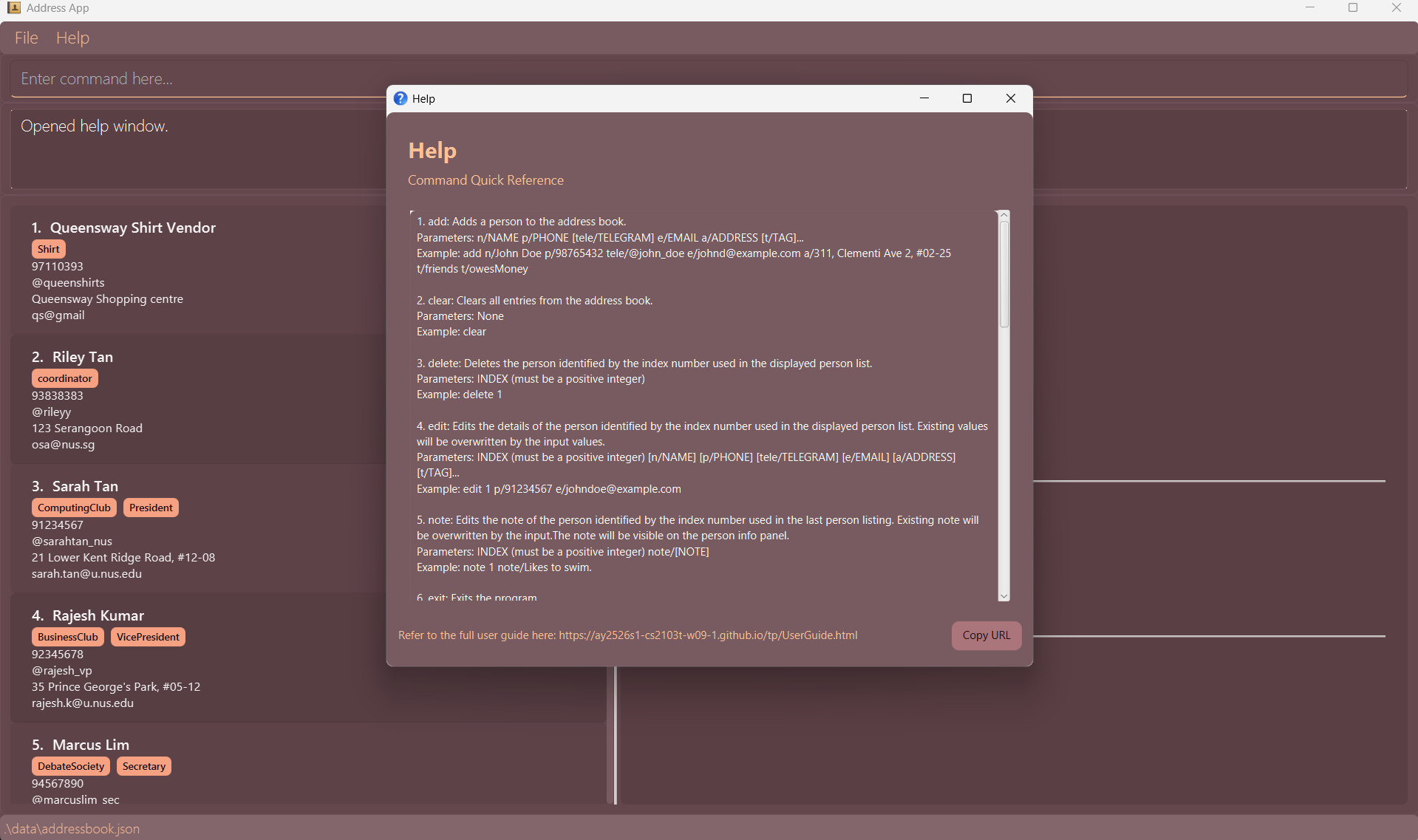
Format: help
 Tip:
The command line will prompt the correct format when syntax is wrong.
Tip:
The command line will prompt the correct format when syntax is wrong.
Adding a contact: add
Adds a contact to the address book.
Format: add n/NAME p/PHONE_NUMBER [tele/TELEGRAM] e/EMAIL a/ADDRESS [t/TAG]…
Duplicate detection: The address book enforces uniqueness. Two entries are considered duplicates if they share the same name (case-insensitive) AND the same phone number. If you try to add a duplicate using add, the command will fail with an error. Similarly, edit will be rejected if the resulting person would duplicate another existing entry. Imports also detect duplicates and will reject or report them during the import process.
Tip:
If you need to store multiple people with the same name, ensure they have distinct phone numbers; otherwise consider appending a distinguishing token to the name (e.g., John Doe (work)).
Tip:
Matching is done case-insensitively for names, so ALICE and alice are treated as the same name for duplicate detection. Phone numbers must match exactly.
- Names should only contain letters, numbers, spaces, and these symbols: ‘, `, ’, ., -, @, (, ) or a literal comma.
-
They should not start with a symbol and must not be blank.
- Accepts international format phone numbers as well, for example (+65-9123-4567, +62 812 5555 1234) which use +, -, ()
Tip:
A contact can have any number of tags (including 0)
Note:
Tags are automatically converted to lowercase for consistency. For example, t/Friends will be stored as friends. This prevents duplicate tags with different capitalizations.
 Caution:
Email requires a valid format with a top-level domain (e.g., .com, .org). It must not be empty and should follow the general rules for email addresses. Ensure the domain and top-level domain are correct. Multi-level domains (e.g., co.uk) and alphanumeric top-level domains (e.g., .museum) are supported. Examples of valid emails:
Caution:
Email requires a valid format with a top-level domain (e.g., .com, .org). It must not be empty and should follow the general rules for email addresses. Ensure the domain and top-level domain are correct. Multi-level domains (e.g., co.uk) and alphanumeric top-level domains (e.g., .museum) are supported. Examples of valid emails: example@domain.com, user.name@sub.domain.co.uk.
Example:
-
add n/John Doe p/98765432 tele/@john_doe e/johnd@example.com a/311, Clementi Ave 2, #02-25 t/friends t/owesMoney: Adds a contact namedJohn Doewith phone number98765432, telegram handle@john_doe, emailjohnd@example.com, address311, Clementi Ave 2, #02-25, and tagsfriendsandowesMoneyto LinkedUp.
Listing all contacts : list
Shows a list of all contacts in the address book. Also pulls up statistics dashboard.
Format: list
Pulling up statistics : stats
Shows a statistical summary of all the contacts inside LinkedUp.
The details displayed will reflect the overall information and will not change unless core data is changed.
E.g filter, find will not update the stats, but for delete, tag etc will cause statistics to update.
For user optimisation, we have also configured add and edit (not the shortcut) to switch the display to the target contact instead of the stats to allow users to track their major changes.
Format: stats
Editing a contact : edit
Edits an existing contact in the address book.
Format: edit INDEX
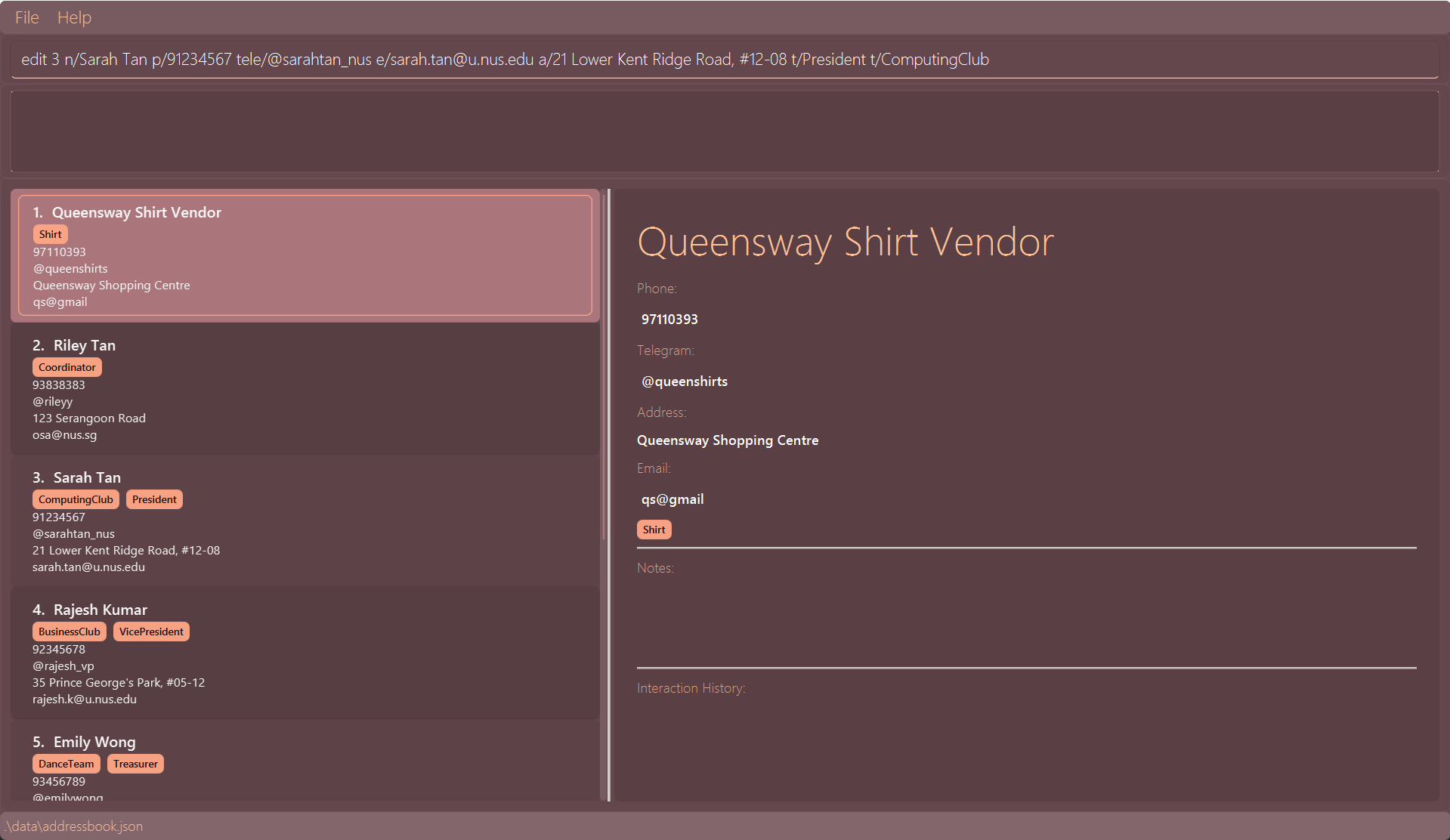
- Autofills edit command for contact at index without executing. The index must be a positive integer 1, 2, 3, …
- Make changes and press enter again to confirm edits
Example:
edit 3
The command line will autofill the contact in index 3 as shown below without changing actual data
Tip:
Use this shortcut to save time and ensure correct syntax
Format: edit INDEX [n/NAME] [p/PHONE] [e/EMAIL] [a/ADDRESS] [t/TAG]…
- Edits the contact at the specified
INDEX. The index refers to the index number shown in the displayed contact list. The index must be a positive integer 1, 2, 3, … - At least one of the optional fields must be provided.
- Existing values will be updated to the input values.
- When editing tags, the existing set of tags will be replaced by the new ones i.e adding of tags is not cumulative.
- You can remove all the contact’s tags by typing
t/without specifying any tags after it.
Examples:
-
edit 1 p/91234567 e/queenspants@gmail.comEdits the phone number and email address of the 1st contact to be91234567andqueenspants@gmail.comrespectively. -
edit 2 n/Betsy Crower t/Edits the name of the 2nd contact to beBetsy Crowerand clears all existing tags.
Adding a note to a contact : note
Adds or edits a freeform note for an existing contact in the address book. The note will be displayed in the contact info panel.
Tip:
Use note to add contextual information about a contact useful to student leaders
(e.g., role reminders, special requirements, availability, or important personal details).
Format: note INDEX note/[NOTE]
- Adds or edits the note of the contact at the specified
INDEX. - The index refers to the index number shown in the displayed contact list.
- The index must be a positive integer 1, 2, 3, …
- The note can contain any text and will be visible in the contact info panel.
- To remove a note, use
note INDEX note/without specifying any text afternote/. - Existing notes will be overwritten by the new note.
Examples:
-
note 1 note/Likes to swim.Adds the note “Likes to swim.” to the 1st contact. -
note 2 note/Prefers email communicationAdds a note about communication preference to the 2nd contact. -
note 1 note/Removes the note from the 1st contact.
Logging an interaction with a contact : log
Adds a log entry to document an interaction with an existing contact in the address book.
Tip:
Use log to log calls, meetings, emails, and similar information with a contact to track follow-ups, commitments, and
interaction history for event coordination and handovers.
Format: log INDEX m/MESSAGE [t/TYPE]
- Adds a log entry for the contact at the specified
INDEX. - The index refers to the index number shown in the displayed contact list.
- The index must be a positive integer 1, 2, 3, …
- The
MESSAGEdescribes the interaction. - The optional
TYPEspecifies the type of interaction (e.g., “call”, “meeting”, “email”).
Examples:
log 1 m/Called about catering quote, they'll email by Friday t/calllog 2 m/Informed to deliver goods by 29/11/25
Caution:
Once a log entry is added, it cannot be edited or deleted. Please ensure the information is accurate before creating the log. You can use the undo command immediately after logging if you need to remove the most recent log entry.
Locating contacts by name: find
Finds contacts whose names contain any of the given keywords.
Format: find KEYWORD [MORE_KEYWORDS]
- The search is case-insensitive. e.g
hanswill matchHans. - The order of the keywords does not matter. e.g.
Hans Bowill matchBo Hans. - Only the name is searched. The name is split into whitespace-separated words, and each keyword is tested against each name word.
- Matching rules applied to each keyword:
- Full-word match (case-insensitive): a name word exactly equals the keyword.
- Substring match (case-insensitive): a name word contains the keyword as a substring. This is only allowed when the keyword length is 3 or more characters to reduce noisy matches for very short keywords.
- Fuzzy match: minor typos are tolerated using Levenshtein distance. By default the fuzzy threshold supplied is 2 edits; however, when the name word being compared is very short (fewer than 4 characters), only up to 1 edit is allowed to avoid overly-permissive matches.
- Keywords are combined with OR semantics: a person is returned if at least one keyword matches at least one word in their name under the rules above.
Examples:
-
find JohnreturnsjohnandJohn Doe. -
find marioreturnsMario WongandMaria(substring/fuzzy may apply). -
find Han(length 3) can matchHansbecause substring matching is enabled for keywords of length 3 or more. -
find Jhndemonstrates fuzzy matching: a small typo in the keyword can still matchJohn.
Tip:
Use three or more characters for a keyword when you want substring matching to be available; for very short keywords (1-2 characters) only full-word and fuzzy matching are considered to avoid noisy results.
Filtering contacts by tags: filter
Filters contacts who has any of the given tags.
Format: filter TAG [MORE_TAG]
- The search is case-insensitive. e.g
friendswill matchFriends - The order of the keywords does not matter. e.g.
friends colleagueswill match contacts with either tag - Only the tags are searched.
- Only exact tag matches will be matched e.g.
friendwill not matchfriends - contacts matching at least one keyword will be returned (i.e.
ORsearch). e.g.filter friends colleagueswill return contacts tagged withfriendsorcolleaguesor both
Examples:
-
filter friendsreturns all contacts tagged withfriends -
filter friends colleaguesreturns all contacts tagged with eitherfriendsorcolleagues
Deleting a contact : delete
Deletes the specified contact from the address book.
Format: delete INDEX
- Deletes the contact at the specified
INDEX. - The index refers to the index number shown in the displayed contact list.
- The index must be a positive integer 1, 2, 3, …
Examples:
-
listfollowed bydelete 2deletes the 2nd contact in the address book. -
find Betsyfollowed bydelete 1deletes the 1st contact in the results of thefindcommand.
Pinning a contact : pin
Pins the specified contact to keep them at the top of the contact list.
Format: pin INDEX
- Pins the contact at the specified
INDEX. - The index refers to the index number shown in the displayed contact list.
- The index must be a positive integer 1, 2, 3, …
- Pinned contacts will always appear at the top of the list, even when sorting or filtering.
Examples:
-
listfollowed bypin 2pins the 2nd contact in the address book. -
find Betsyfollowed bypin 1pins the 1st contact in the results of thefindcommand.
Unpinning a contact : unpin
Unpins the specified contact, removing it from the pinned position.
Format: unpin INDEX
- Unpins the contact at the specified
INDEX. - The index refers to the index number shown in the displayed contact list.
- The index must be a positive integer 1, 2, 3, …
- The contact must already be pinned.
Examples:
-
listfollowed byunpin 1unpins the 1st contact in the address book.
Undoing a command : undo
- Undo last action
- Reverts the effects of the following commands:
- Add
- Delete
- Edit
- Clear
- Pin
- Unpin
- Note
- Log
Tip:
Useful for any unintentional mistakes
Redoing a command : redo
- Redo last action, reverting state of application to that before previous undo
- Redo history will be cleared when commands that edit the state of the data are made, a.k.a new changes clear the redo history.
Importing a save file : import
Imports the details stored in the specified file
Format: import f/FILE
Tip:
Use relative addresses for easier referencing!
Caution:
If you move your save file, LinkedUp will not be able to find it anymore. You should re-import the save file with the new filepath.
- Either a
.jsonor a.csvfile can be used.
Example:
- Importing a json file:
import f/data/addressbook.json - Importing a csv file:
import f/data/addressbook.csv
Tip:
After importing a .json file, any functions will be saved on the imported .json file.
However, importing a csv file will not change the autosave’s destination.
Exporting your save file to .json or .csv : export
Exports your saved data to a .json or .csv file.
Format: export f/FILE [t/TAG]...
Options:
-
FILE: Filepath of export file. File must have extension.jsonor.csv. -
[TAG]: Tags to filter the contact list before exporting. Only contacts with all the provided tags will be exported.
Tip:
Use relative addresses for easier referencing!
Sorting Contacts: sort
Sort contacts via a specific field in a specific order
Format: sort [f/FIELD] [o/ORDER]
- If
FIELDis not specified, the default isname - If
ORDERis not specified, the default isasc - Pinned contacts are sorted separately from unpinned contacts and will remain pinned to the top
- Sort order resets when you restart the app.
Options:
-
[FIELD]: One of:namephoneemailtelegramaddress
-
[ORDER]: One of:ascdesc
Example
-
sort f/name o/ascsorts all contacts by name in ascending order -
sort f/address o/descsorts all contacts by address in descending order
Clearing all entries : clear
Format: clear
A warning will pop up, where you can type clear confirm to confirm the deletion. The clear confirm command will execute, regardless of any text following it

Caution:
Deletes all contact details. Data cannot be retrieved after you clear and exit the app.
Format: clear confirm
Clears all entries from the address book.
Exiting the program : exit
Exits the program.
Format: exit
Saving the data
LinkedUp data are saved in the hard disk automatically after any command that changes the data. There is no need to save manually.
Editing the data file
LinkedUp data are saved automatically as a JSON file [JAR file location]/data/addressbook.json. Advanced users are welcome to update data directly by editing that data file.
Caution:
If your changes to the data file makes its format invalid, LinkedUp will discard all data and start with an empty data file at the next run. Hence, it is recommended to take a backup of the file before editing it.Furthermore, certain edits can cause LinkedUp to behave in unexpected ways (e.g., if a value entered is outside of the acceptable range). Therefore, edit the data file only if you are confident that you can update it correctly.
FAQ
Q: How do I transfer my data to another Computer?
A: Follow all instructions below in order
- You can use
export f/FILEto create either a.csvfile or a.jsonfile. - Copy your file of choice to your other computer, then use
import f/FILEto use your data in your other computer.
Q: What is the maximum number of undo operations I can perform?
A: You can undo up to 50 operations. Each time you perform an action that edits contact details directly, a new state is saved to the undo history. Once the history reaches 50 states, the oldest state is automatically removed when a new state is added, allowing the system to maintain a fixed memory usage.
Q: What happens when I exceed the 50 undo limit?
A: When you perform your 51st undoable action, the oldest saved state is automatically removed from the undo history to maintain the limit of 50 states. This means you can no longer undo beyond the 50 most recent actions. Additionally, any redo history is cleared whenever you perform a new action that edits contact details.
Q: Which actions trigger undo functionality?
A: Only actions that directly edit contact details are recorded in the undo history. These include:
Adding a new contact Deleting an existing contact Editing contact information (name, phone, email, address, tags, etc.)
Actions that do not trigger undo include viewing contacts, searching, filtering, or other display-related operations.
Known issues
-
When using multiple screens, if you move the application to a secondary screen, and later switch to using only the primary screen, the GUI will open off-screen. The remedy is to delete the
preferences.jsonfile created by the application before running the application again. -
If you minimize the Help Window and then run the
helpcommand (or use theHelpmenu, or the keyboard shortcutF1) again, the original Help Window will remain minimized, and no new Help Window will appear. The remedy is to manually restore the minimized Help Window.
Command summary
| Action | Format, Examples |
|---|---|
| Add |
add n/NAME p/PHONE_NUMBER e/EMAIL a/ADDRESS [t/TAG]… e.g., add n/James Ho p/22224444 e/jamesho@example.com a/123, Clementi Rd, 1234665 t/friend t/colleague
|
| Clear | clear |
| Stats | stats |
| Delete |
delete INDEXe.g., delete 3
|
| Edit autofill |
edit INDEX e.g., edit 2
|
| Edit |
edit INDEX [n/NAME] [p/PHONE_NUMBER] [e/EMAIL] [a/ADDRESS] [t/TAG]…e.g., edit 2 n/James Lee e/jameslee@example.com
|
| Log |
log INDEX m/MESSAGE [t/TYPE]e.g., log 1 m/Called about catering quote t/call
|
| Note |
note INDEX note/[NOTE]e.g., note 1 note/Likes to swim.
|
| Filter |
filter TAG [MORE_TAGS]e.g., filter friends colleagues
|
| Find |
find KEYWORD [MORE_KEYWORDS]e.g., find James Jake
|
| List | list |
| Undo | undo |
| Redo | redo |
| Import |
import f/FILEe.g., import f/data/linkedup.json
|
| Export |
export f/FILE [t/TAG]... e.g., export f/data/linkedup.json t/colleagues
|
| Sort | sort [f/FIELD] [o/ORDER] |
| Pin |
pin INDEXe.g., pin 2
|
| Unpin |
unpin INDEXe.g., unpin 1
|
| Help | help |
Glossary
| Term | Meaning |
|---|---|
| Student Leader | A university student with management responsibilities |
| Vendor | A provider of resource that student leaders interact with to obtain goods and services (e.g shirt, food) |
| Contact | A set of details that represents a person as an entity |
| Command | A specific instruction provided by the user |
| Parameter | Details provided by the user to alter command behaviours |
| Log | Remarks on the modification of information, or communication with a specific contact with a time attached |
| Note | Simple comments pertaining to a specific contact |
| Tag | A user-defined label attached to a contact to group or filter contacts (e.g., t/friends). |
| Index | The 1-based number shown beside a contact in a displayed list used to reference that contact in commands. |
| Autosave | The feature that writes changes to the current save file automatically after any data-changing command. |
| Save file | The file where LinkedUp stores data (default: data/addressbook.json). Can be exported or imported as .json or .csv. |
| JSON | A structured text format used by LinkedUp to store contact data (.json). |
| CSV | A comma-separated values file used for exporting/importing contact lists (.csv). |
| Pinned contact | A contact marked to always appear at the top of the list regardless of sorting. |
| Fuzzy match | A search method that tolerates minor typos to find likely matches (works better with longer keywords). |
| Exact match | A search method that matches only identical words or tags (no partial or fuzzy matching). |
| Autofill | The edit shortcut that populates the command box with a contact’s current details for quick editing. |
| Preference file | Application settings stored locally (e.g., window position). Deleting it can reset GUI position. |
| Undo/Redo stack | Internal history of changes allowing reversal (undo) and re-application (redo) of recent edits. |
| Command box | The text input area in the visual interface where users type commands. |
| Home folder | The folder where the .jar and default data folder are stored and where LinkedUp saves addressbook.json. |